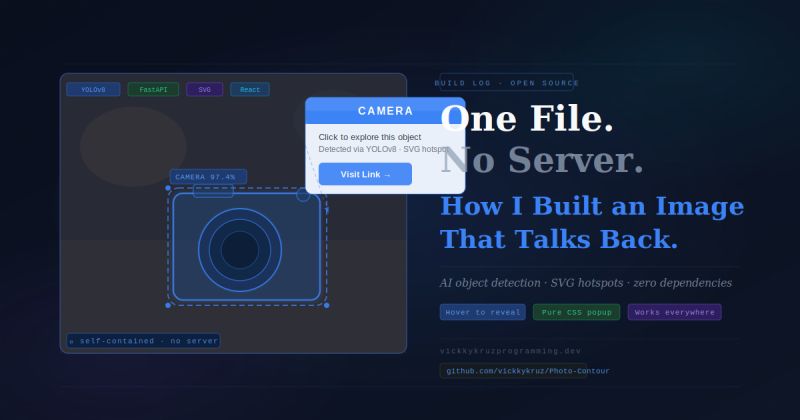
Every side project has a point when the idea ceases to be just a concept and starts to take shape. In case of PhotoContour, it was that time when I loaded an SVG file from the Internet in the browser, pointed the cursor at a cat sitting on a wooden deck, and, as a result, a small popup was coming up with a label, a description, and a clickable link all elements packed into a single file.
PhotoContour's promise is simple: no server, no JavaScript framework, and no external dependencies, just a single SVG file that can run independently almost anywhere.

Upload a photo, have the AI recognize objects in it, select one, add some text and a link, and you even get an interactive image you can share on any platform that supports SVG, Twitter/X, LinkedIn, Discord, email, you name it.
However, the road to making this was paved with many bugs related to coordinates, several architecture decisions, and one uber-mind-boggling gotcha ultimately revealed in only one line of Python code. I hope you will let me guide you through it.
The Idea
I have always been annoyed by traditional image hotspot tools. First, most of them require you to host the interactive part on a separate web page, some will completely bind you to their platform, and a few others will ask your users to install something. Best of all, none of them produce a portable, self-contained file.
PhotoContour came from a pretty straightforward question: what if the interactivity was contained within the image itself?
SVG was the right choice. An SVG file can include a raster image encoded in base64, draw vector shapes on the image, and even handle hover and click events using only CSS, no JavaScript needed. If you are capable of opening a webpage, you are capable of opening an interactive PhotoContour SVG.
High-Level Architecture
There are three major components of the system:
The Backend API (FastAPI) is responsible for uploading images, storing them in the database, handling JWT authentication, validating image quality, and generating SVG.
The YOLO Detection Service runs YOLOv8 segmentation as a micro-service. It takes an image path and returns detected objects along with their contours.
The Frontend Studio (React + Vite) is the creative tool where users get to see their uploaded images, have detected objects displayed on a map, choose one, enter their annotation, and finally download the SVG.
I used Pydantic to define a precise contract for detections on the backend:
# app/schemas/hotspots.py
from pydantic import BaseModel
from typing import List, Optional


class BBox(BaseModel):
    x1: float
    y1: float
    x2: float
    y2: float


class DetectedObject(BaseModel):
    id: int
    label: str
    score: float
    contour: Optional[List[List[float]]] = None  # [[x_norm, y_norm], ...]
    bbox: BBox


class DetectionResult(BaseModel):
    image_id: int
    width: Optional[float] = None
    height: Optional[float] = None
    objects: List[DetectedObject]
The detection service invokes YOLO, transforms its results into this DetectionResult, and the rest of the system communicates only to that schema. It had been critical to abstract things the way I did here because later, I thought of using TensorFlow as a different detection backend with this contract set up, changing the model would mean editing just one file.
From YOLO to SVG
If you upload an image for detection, the following series of events take place in the system:
- The backend first retrieves the image file from disk and then gets its actual size via PIL.
- Next, the backend contacts the YOLO microservice, handing it the full image path.
- YOLO sends back the identified results: the class label, confidence level, bounding box, and contour, a sequence of points in normalized coordinates (0, 1) for both width and height.
- Backend places these into a
DetectionResultand sends serialized JSON back to the frontend.
# app/services/detection_service.py
def run_yolo_detection(db: Session, image_id: int) -> DetectionResult:
    image = db.query(Image).filter(Image.id == image_id).first()
    if image is None:
        raise ValueError("Image not found")

    filepath = image.filepath.replace("app/static/uploads/", "static/uploads/")
    abs_path = os.path.abspath(filepath)

    if not Path(abs_path).exists():
        raise ValueError(f"Image file not found: {abs_path}")

    pil_img = PILImage.open(abs_path)
    img_width, img_height = pil_img.size

    resp = requests.post(YOLO_SERVICE_URL, json={"image_path": abs_path}, timeout=30)
    resp.raise_for_status()
    data = resp.json()

    objects = [
        DetectedObject(
            id=o["id"],
            label=o["label"],
            score=o["score"],
            bbox=BBox(**o["bbox"]),
            contour=o.get("contour", None)
        )
        for o in data["objects"]
    ]

    return DetectionResult(
        image_id=image_id,
        width=img_width,
        height=img_height,
        objects=objects,
    )
The SVG service steps in right after the user picks an object and presses Generate. It converts the normalized contour points into pixel coordinates, encodes the image as base64, and constructs the interactive SVG, complete with a hover popup card displaying the user's description and a clickable "Visit Link" button, all in pure SVG/CSS:
# app/services/svg_service.py
def generate_interactive_svg(db: Session, hotspot: HotspotCreate) -> SvgResponse:
    image = db.query(Image).filter(Image.id == hotspot.image_id).first()
    detection_result = detection_service.run_yolo_detection(db, hotspot.image_id)

    obj = next((o for o in detection_result.objects
                if o.id == hotspot.object_id), None)
    if not image or not obj:
        raise HTTPException(status_code=404, detail="Image or object not found")

    w, h = detection_result.width, detection_result.height

    # Scale contour from normalized [0–1] → pixel coordinates
    contour_points = obj.contour or []
    scaled = [(x * w, y * h) for x, y in contour_points]
    path_data = "M " + " ".join(f"{x:.1f},{y:.1f}" for x, y in scaled) + " Z"

    stroke_color = hotspot.color or "#3b82f6"

    with open(image.filepath, "rb") as f:
        img_data = base64.b64encode(f.read()).decode()

    # Popup card positioning — centered above the object
    popup_w = w * 0.42
    popup_h = h * 0.22
    # ... scaling logic for fonts, button, padding ...

    svg = f"""<?xml version="1.0" encoding="UTF-8"?>
<svg xmlns="http://www.w3.org/2000/svg"
     viewBox="0 0 {w} {h}"
     style="width:100%;height:auto;display:block;">
  <image href="data:image/jpeg;base64,{img_data}"
         x="0" y="0" width="{w}" height="{h}" />
  <g class="hotspot-group">
    <path class="hotspot-path" d="{path_data}"
          fill="rgba(59,130,246,0.18)"
          stroke="{stroke_color}" stroke-width="2.5" />
    <g class="popup">
      <!-- Styled card with label, description, visit button -->
    </g>
  </g>
</svg>"""

    return SvgResponse(image_id=image.id, svg=svg, preview_url=f"/images/{image.id}/file")
The result is one single .svg file. You can open this file in any browser, and simply by hovering over the highlighted object, the annotation card will slide into view. Clicking the button takes you to the link. No server necessary.
Designing the Highlight Shape
One of the first design questions was how to visually represent the detected object. There are two choices:
An exact contour (segmentation mask path) closely follows the object, however, even tiny coordinate errors become clearly visible and in the case of blurred or partially visible objects, the contour can look jagged.
A bounding box rectangle generally looks cleaner and is more forgiving, but tends to be less striking and less precise.
# Bounding box approach — simpler alternative to contour path
bx1, by1 = obj.bbox.x1 * w, obj.bbox.y1 * h
bx2, by2 = obj.bbox.x2 * w, obj.bbox.y2 * h
bw, bh   = bx2 - bx1, by2 - by1

rect = (
    f'<rect x="{bx1:.1f}" y="{by1:.1f}" '
    f'width="{bw:.1f}" height="{bh:.1f}" '
    f'fill="rgba(59,130,246,0.2)" stroke="{stroke_color}" '
    f'stroke-width="4" rx="8" ry="8"/>'
)
Contours are more dramatic in a visual way, since the outline really encloses the object. However, I saved the bounding box method as a backup option for those instances when the segmentation mask is too noisy.
The Frontend Studio
The user experience side of PhotoContour is a three-panel dark studio interface that was created using React, Vite, TypeScript, Zustand for state management, and Tailwind CSS for styling.
The layout resembles professional design tools:
- Left panel, upload zone and image library
- Center canvas, the chosen image overlaid with detected object contours drawn by a live SVG layer
- Right panel, detected objects list, annotation form (description, link URL, highlight color), and the Generate button
Figuring out how to correctly work with the overlay SVG on the canvas was one of the most challenging aspects.
The image is displayed at a different size than its natural pixel dimensions, so each contour point has to be rescaled from normalized coordinates to the rendered size, not the natural size:
// Correct: scale to rendered display size
const scaleX = renderedWidth  / naturalWidth;
const scaleY = renderedHeight / naturalHeight;

const points = obj.contour
  .map(([x, y]) => `${x * renderedWidth},${y * renderedHeight}`)
  .join(" ");
A ResizeObserver keeps the overlay perfectly aligned even as the browser window resizes. The result is a clean, professional workspace that feels responsive and intentional.
The Biggest Gotcha — Actually, Two of Them
Gotcha 1: The Coordinate System Nobody Warned Me About
This one hid in plain sight for longer than I'd like to admit.
Inside the YOLO microservice, after running inference, I needed the original image dimensions to normalize the contour points. The Ultralytics API provides this via results.orig_shape. Simple enough.
# The bug — looks completely reasonable
img_w, img_h = results.orig_shape
Except orig_shape follows the numpy convention, which returns dimensions as (height, width) — not (width, height). For a 194 × 259 image, I was silently assigning:
img_w = 259  ← actually the height
img_h = 194  ← actually the width
Every contour point was then normalized by the wrong dimension. For square images, this bug is completely invisible. For any non-square image, which is almost every real photo, the contour points were subtly distorted.
The fix was a single word:
# The fix
img_h, img_w = results.orig_shape  # height first — numpy convention
One character swap. Hours of confusion. Classic.
Gotcha 2: Correct SVG, Wrong React Overlay
Just when I thought the coordinate story was over, a second bug emerged, and this one was more interesting.
At one point, the system was in this bizarre state:
- The downloaded SVG looked perfect: the contour hugged the object exactly.
- The React overlay in the browser looked completely wrong: the border was misaligned and tiny.
To debug it, I added logging on the backend:
Image size: 194.0 × 259.0
Raw contour points:  [[0.25, 0.005], [0.25, 0.010], ...]
Scaled contour pts:  [(49.4, 1.3), (49.4, 2.7), ...]
The numbers were exactly right. That meant the backend math was fine, the issue was purely in the frontend visualization layer.
The React component was drawing contour overlays using the natural image pixel dimensions (194 × 259), but the image was being displayed at a much larger size on screen, maybe 600 × 800px. The overlay was using the wrong coordinate space entirely.
This was a good reminder: many "AI accuracy" problems are actually plumbing problems in disguise. The model was doing its job. The visualization layer wasn't.
Image Quality Validation
One thing I noticed during testing was that blurry or low-resolution images produced poor detections, jagged contours, misidentified objects, fragmented masks. The temptation was to lower the confidence threshold and let more detections through.
Instead, I took a different approach: reject poor quality images at upload time, before they ever reach YOLO.
import cv2

def check_image_quality(filepath: str) -> tuple[bool, str]:
    # 1. Minimum file size
    if os.path.getsize(filepath) / 1024 < 20:
        return False, "Image too small. Please upload a higher quality file."

    # 2. Minimum resolution
    with Image.open(filepath) as img:
        w, h = img.size
    if w < 300 or h < 300:
        return False, f"Resolution too low ({w}×{h}px). Minimum is 300×300px."

    # 3. Blurriness — Laplacian variance
    img_cv = cv2.imread(filepath, cv2.IMREAD_GRAYSCALE)
    variance = cv2.Laplacian(img_cv, cv2.CV_64F).var()
    if variance < 80.0:
        return False, f"Image appears blurry (score: {variance:.1f}). Please upload a sharper photo."

    return True, ""
The user gets a clear, actionable error message rather than a confusing detection result. The system stays honest about what it can and can't do.
A Client Constraint: TensorFlow vs YOLO
The user gets a clear, actionable error message rather than a confusing detection result. The system stays honest about what it can and can't do.
The client originally mentioned they had used the TensorFlow Object Detection API in an older system, which raised the question: should I switch?
After evaluating it, I decided to stay with YOLOv8 for Phase 1:
- YOLOv8 is fast, lightweight, and already integrated
- TensorFlow's Object Detection API is powerful but heavier and more complex to deploy
- Swapping mid-project would slow delivery without a clear accuracy benefit
More importantly, because the entire system talks through the DetectionResult schema, plugging in a TensorFlow-based detection service later is straightforward, it just needs to emit the same JSON contract. The rest of the system won't know or care.
Lessons Learned
Separate model concerns from product concerns.
The detection engine forms a portion of a system only. By fixing the JSON contract, you can interchange models without changing anything else.
Validate coordinates end-to-end.
One of the first things you should be thinking is: are these coordinates normalized or in pixels? Do they follow the order (width, height) or (height, width)? First, check one sample image with logs and a downloaded file to make sure that the model is not at fault.
The "accuracy problem" is often a UX problem.
Users are not bothered with how many detections internally happened, what they care about is if the highlight is matching the object that they have selected. A clean shape, proper positioning, and a readable popup card do a lot more for the perceived quality than chasing an extra percentage point of mAP.
You don't need to retrain the model always.
Don't be quick to retraining or switching frameworks. First, check for scaling bugs, selection logic issues, and visualization problems. In most cases, the model is good. The problem is with the plumbing.
What's Next
PhotoContour is already accomplishing what I planned to do. However, there are additional features planned for the future:
- Different hotspots on individual images, you can attach annotations to multiple objects in the image
- Selecting by click on the canvas, users can directly click on the image to select an object rather than selecting from the list
- TensorFlow detection backend, implementing the same
DetectionResultschema for making the comparative speed and accuracy tests with YOLO
- Export options, different highlight styles, e-commerce templates, bulk processing for enterprise users
At the moment, PhotoContour creates a very useful product: starting from a simple photo, it generates an interactive SVG where the selected object is highlighted, annotated, and clickable, all contained in a single self-sufficient file that can operate anywhere.
That seemed like a good reason to make it.
*On the technical side, PhotoContour is developed with FastAPI, YOLOv8, React, Vite, Zustand, and Tailwind CSS. Its source code can be found on https://github.com/vickkykruz/Photo-Contour
Comments